Studio Module
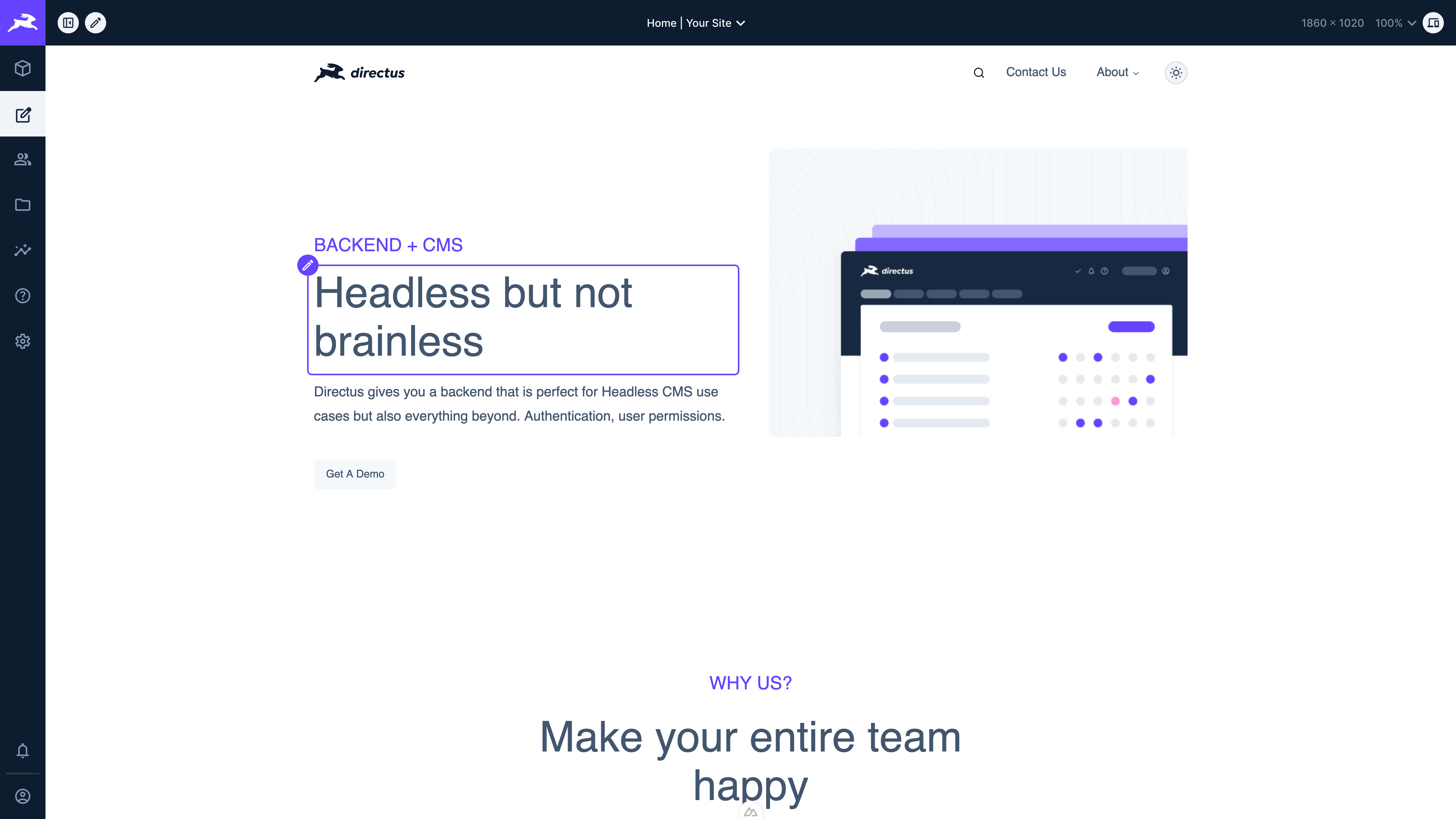
The visual editor module enables content editors to render their website within the Directus Studio, navigate around within the site, and make edits to content in place.
Configure Visual Editor URLs
Navigate to Settings → Visual Editor and add the URL of your website that you want to visually edit. If you have multiple websites, add multiple URLs.
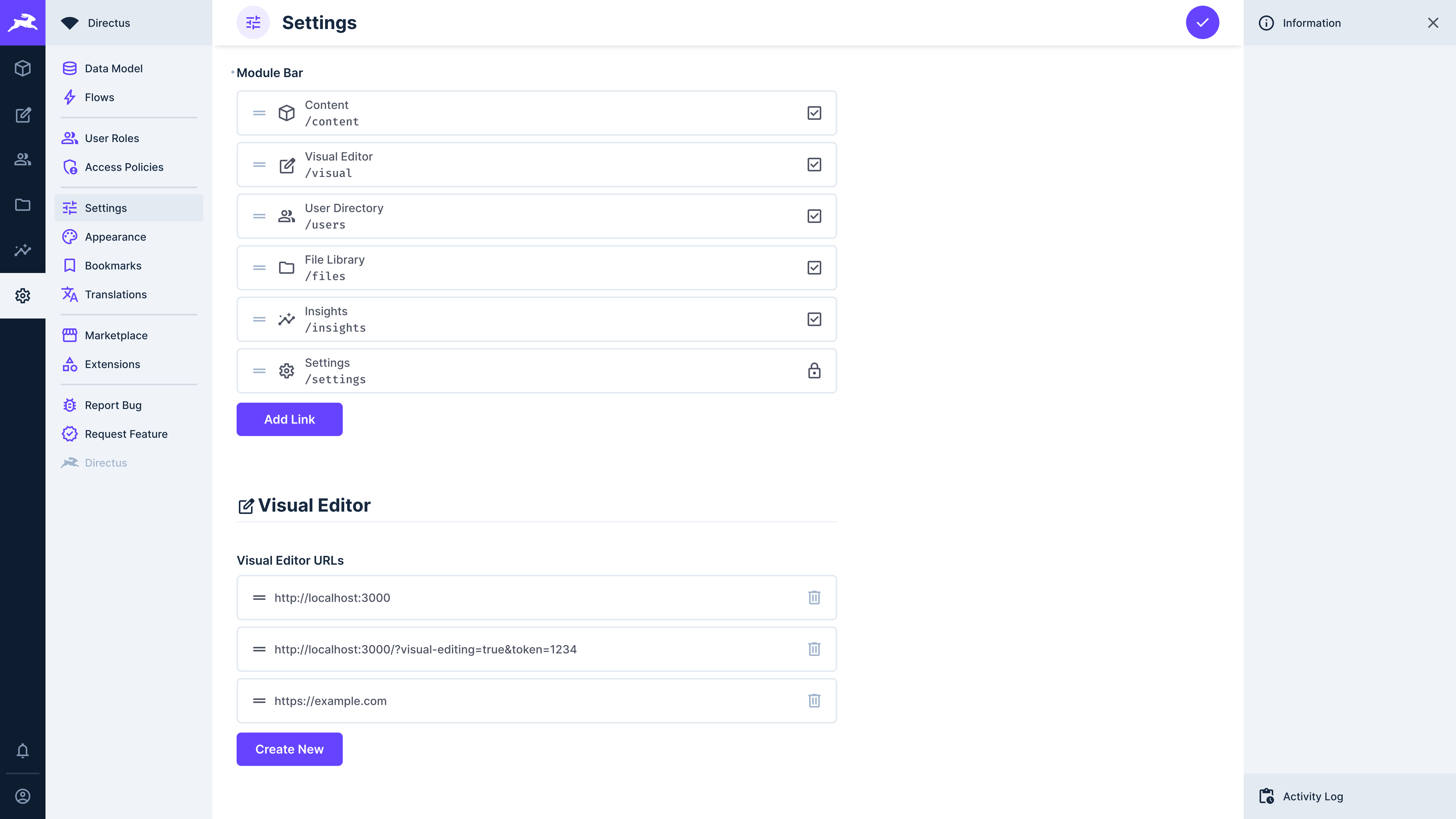
Be sure to enable the Visual Editor from the Modules section of the settings page so it shows up in your project's module bar.
Version Support in URLs
The URL field supports a {{$version}} template variable. When included, the Visual Editor will pass the currently selected version key to your website, enabling version-aware previews.
https://your-site.com/preview?version={{$version}}
- Resolution: When no version is selected,
{{$version}}resolves tomain. - Flexibility: The variable can be placed in any part of the URL (query parameters, path segments, subdomains, or hash fragments).
Implementation Checklist
To ensure version-aware editing functions correctly, verify the following configuration steps:
1. Frontend Integration
- Template Variable: You must include
{{$version}}in the URL field. If omitted, the version selection dropdown will not appear in the Visual Editor toolbar. - Directus Frontend Library: Your website must be configured using our publicly available Frontend Library.
- Version-Aware Fetching: Your code must detect the version parameter from the URL and pass it to the Directus API (e.g.,
/items/posts/42?version=draft). Without this, the site will continue to display "Main" content regardless of your selection.
2. Environment Configuration
Update your Directus instance environment variables to authorize the connection and ensure content refreshes:
| Variable | Required Value | Purpose |
|---|---|---|
CONTENT_SECURITY_POLICY_DIRECTIVES__FRAME_SRC | "<your-website-url>" | Allows your website to be embedded within the Directus Studio iframe. |
CACHE_AUTO_PURGE | true | Ensures the preview reflects changes immediately after saving edits. |
CONTENT_SECURITY_POLICY_DIRECTIVES__FRAME_SRC directive is missing.Additionally, without
CACHE_AUTO_PURGE enabled, the Visual Editor will continue to display stale data until the cache naturally expires.Editing in the Module
Once your URLs are set up, navigate to the visual editor module by selecting it from module bar. Your first entered URL will render in the module.
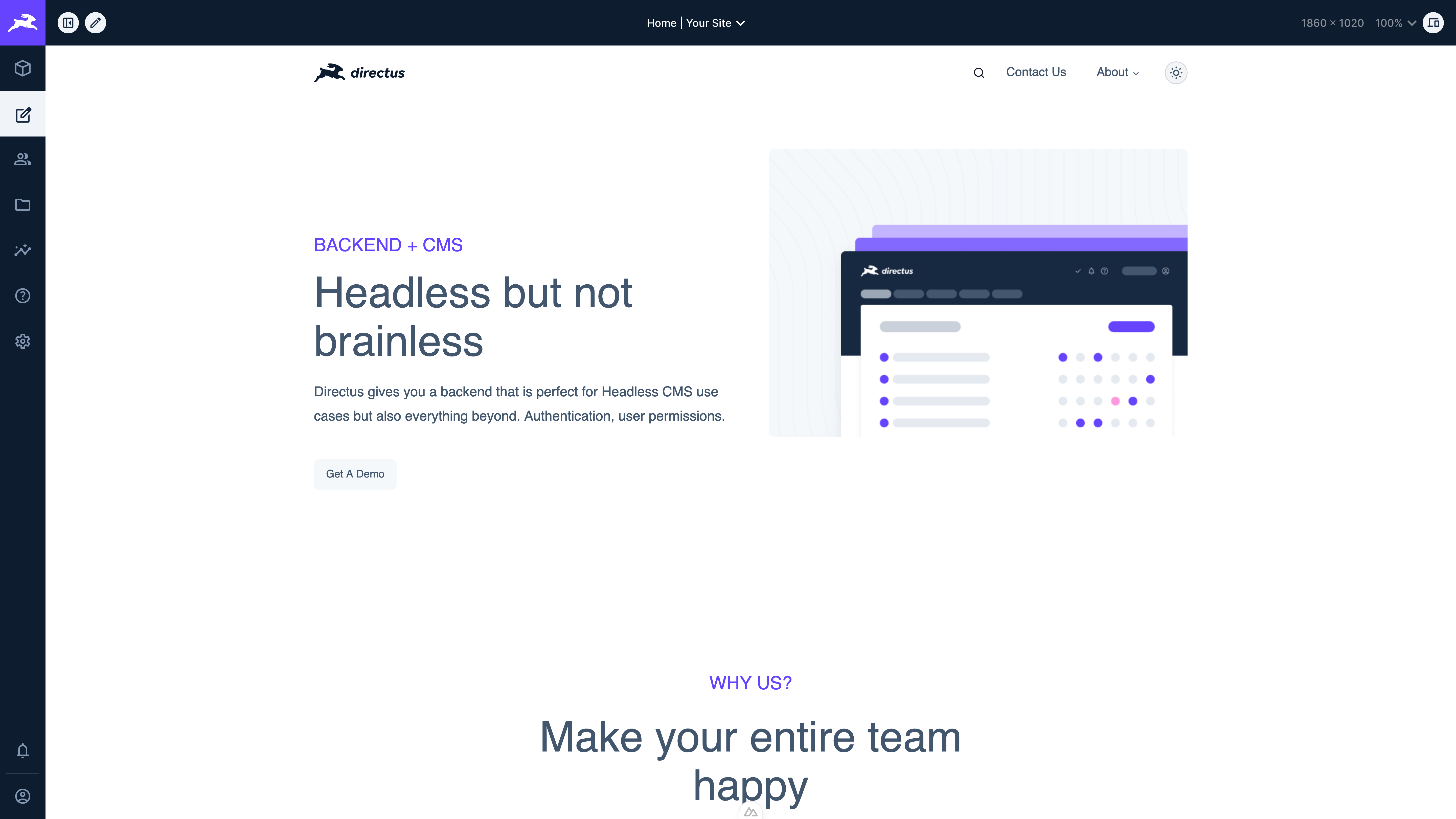
Navigating between different added URLs can be done by clicking the dropdown in the top toolbar.
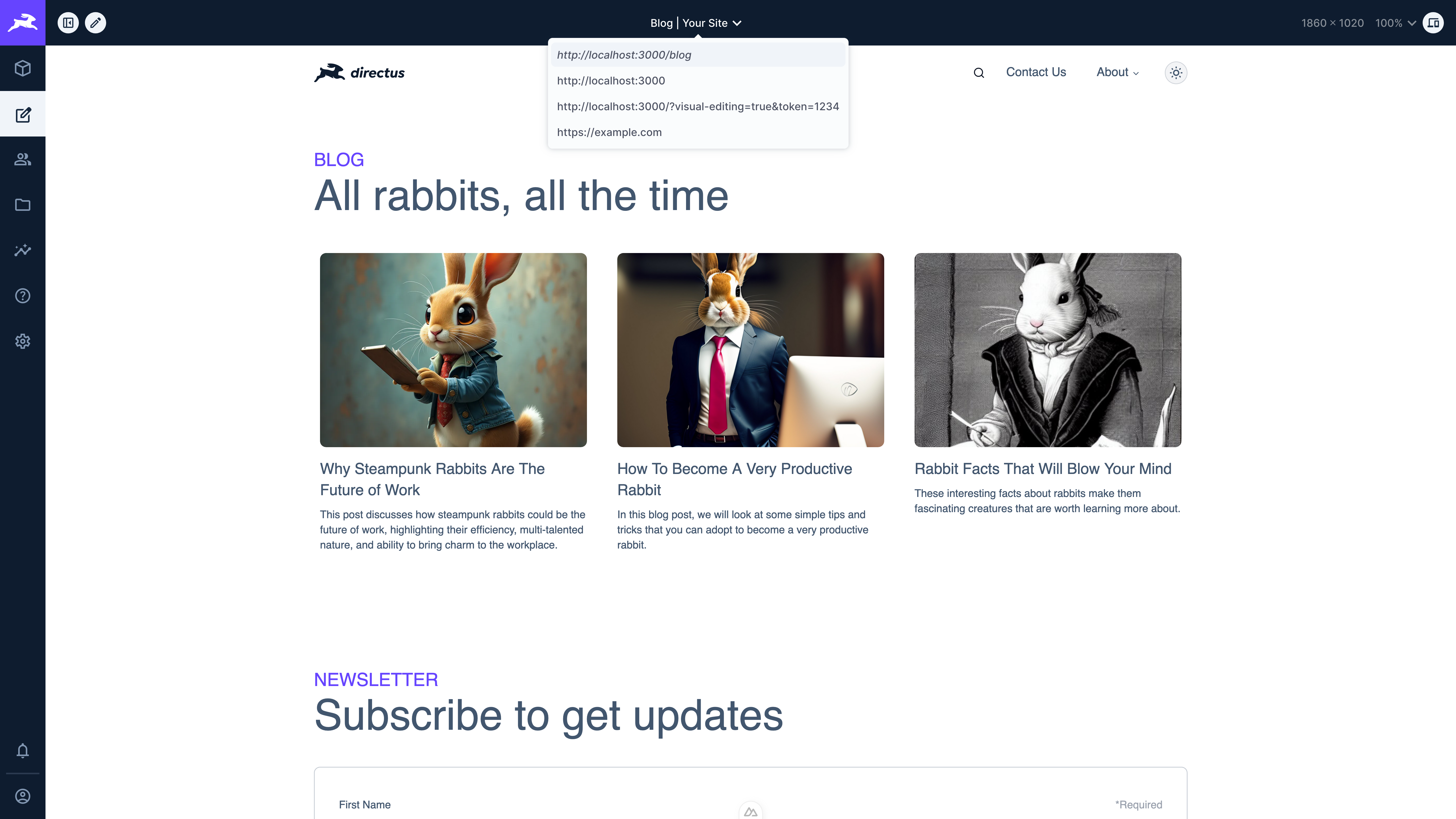
Hovering over an editable item will highlight it within the module.
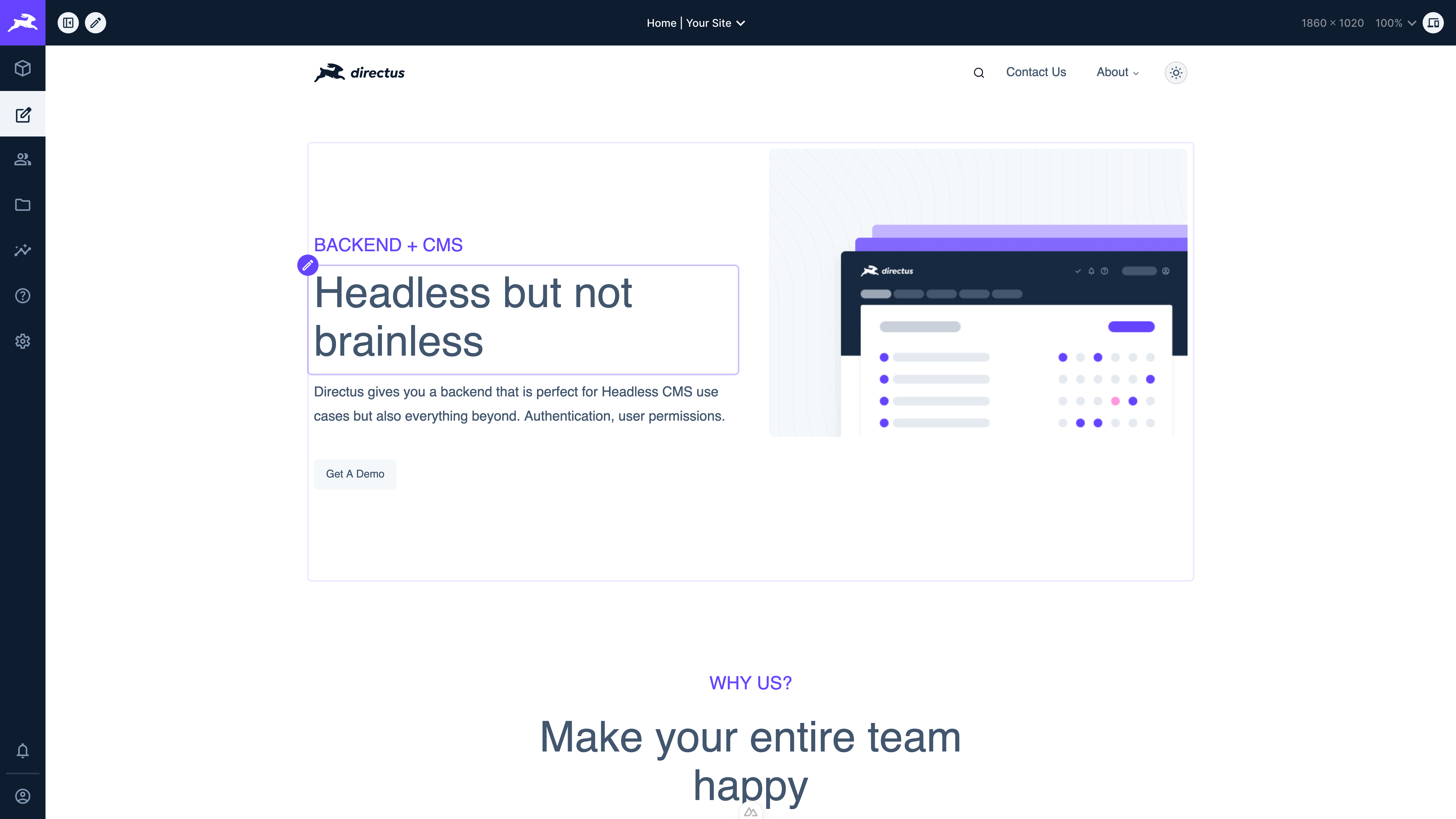
Click the icon in the toolbar will highlight all the editable items on the page.
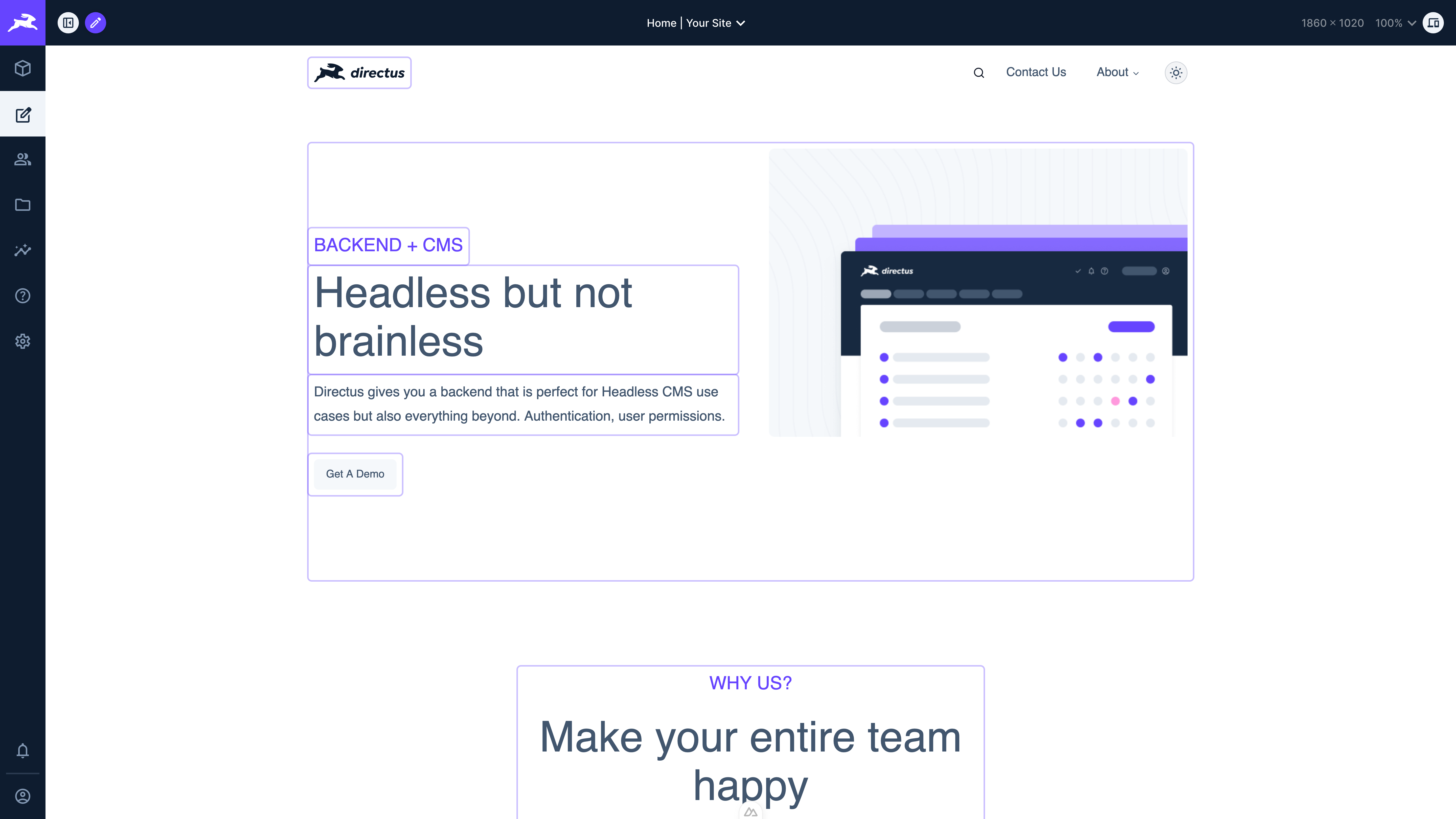
Clicking the beside an editable element will open an editor in either a drawer, modal, or popover depending on which mode was specified in the elements data-directus attribute on the frontend.
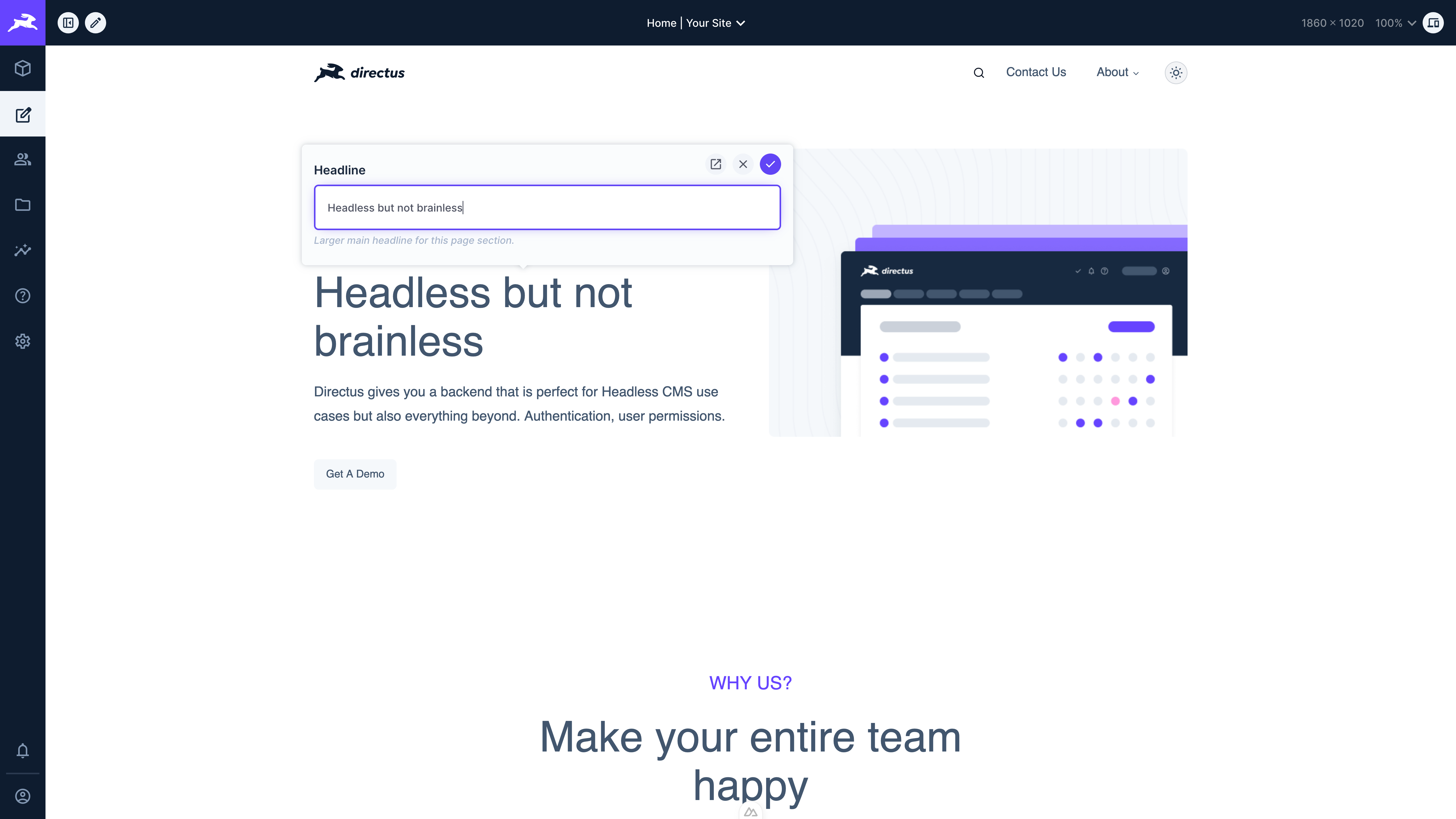
Once you are done editing your item, click the save button and your website will refresh to show your changes.
Working with Versions
When a URL includes the {{$version}} variable, a version dropdown appears in the toolbar of the Visual Editor.
Selecting a Version
The dropdown lists:
- Main — the published version (default)
- Draft — the global draft version, always available for collections with versioning enabled
If your website URL contains a version key that doesn't match "main" or "draft" (e.g. from a custom query parameter), it will also appear as a dynamic option in the dropdown.
Version-Aware Editing
When a version other than main is selected:
- Only items on collections with versioning enabled will show editable elements. Items on non-versioned collections are hidden from editing.
- Saving an edit creates or updates the version for that specific item. If the version doesn't exist yet for the item, it's created automatically on save.
- Items without content in the selected version display their main version content as a read-only fallback.
directus_versions. Editing in a version additionally requires create or update permission on directus_versions.Permissions
Editable elements are gated by field-level permissions. When visual editing is active, Directus validates each element against the current user's access before making it interactive:
- Admin users can edit all elements.
- Non-admin users only see editable overlays on fields they have update permission for.
- When a version is selected, elements are additionally hidden for collections that don't have versioning enabled, and for users without the required
directus_versionspermissions.
Elements that fail permission checks remain completely inert — no overlay, no hover effect, no click handler.
AI-Assisted Editing
When AI Assistant is available, you can add visual elements as context for AI conversations. Hover over an editable element and click the AI icon to select it, then open AI Assistant to send your message with the element as context.
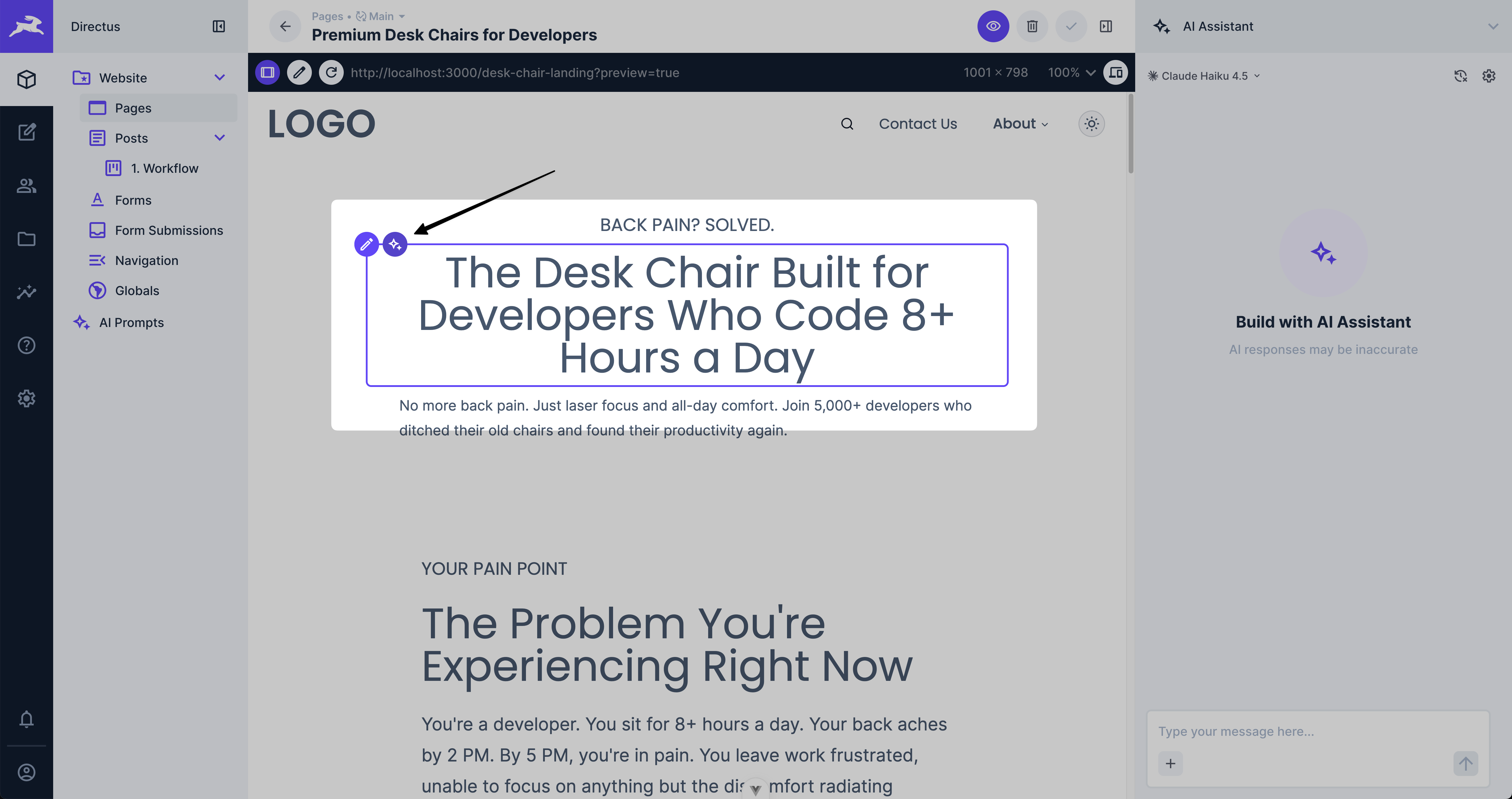
For more details on using context attachments, see Adding Context.
Get once-a-month release notes & real‑world code tips...no fluff. 🐰